

The bottom line: Wi-Fi Calling routes standard calls through your internet connection instead of cellular towers. This native feature eliminates signal dead zones, ensuring reliable communication in basements or rural areas without third-party apps. By using your existing number, it effectively turns any stable Wi-Fi signal into a personal cell tower.
Are you tired of dropped calls and the frustration of standing by a window just to maintain a weak signal in your own home?
Wifi calling effectively bridges this coverage gap by routing your standard phone calls directly through your broadband internet connection instead of relying on distant, unreliable cellular towers.
We will guide you through the precise activation process for your specific device, compare the audio fidelity against popular VoIP apps, and highlight the hidden security settings required to keep your private conversations secure.
What Wi-Fi Calling Actually Is (and What It Isn’t)
So, What’s the Big Deal with Wi-Fi Calling?
Wi-Fi Calling allows you to make phone calls and send texts using a Wi-Fi connection instead of relying on cell towers. It bypasses the standard network entirely.
You get clear voice quality without needing a signal bar.
This technology solves the frustration of dropped calls in areas with weak cellular coverage or dead zones.
Think about thick concrete basements, steel office buildings, or remote rural houses. You finally get a reliable signal exactly where you need it most.
Best of all, you do not need to download anything new. It is a feature integrated into the phone that most major carriers support right now.
How It Works Under the Hood (Without the Jargon)
Your phone routes the voice data through the Internet directly to your operator’s network. It functions like VoIP, but your mobile service provider manages it securely. The transition happens automatically in the background without you lifting a finger.
Engineers call this technology Generic Access Network (GAN) or UMA. You don’t need to know the acronyms to benefit from the stability.
The person you call won’t notice a difference either. To them, it looks exactly like a standard call coming from a cellular network.
Not Another Calling App
Forget about logging into Skype or WhatsApp just to talk. Wi-Fi Calling utilizes the native keypad and your existing phone number. You never have to launch a separate third-party app. It fits right into your current workflow.
Your contacts don’t need to install anything special either. You can dial any landline or mobile number just as you normally would. The experience is completely transparent for everyone involved. It just works.
The Good, the Bad, and the Fine Print
Now that we know what it is, let’s look at what you gain… and what it might cost you.
Your Secret Weapon Against Dead Zones
The number one benefit is obvious: reliable communication exactly where signal bars vanish. It marks the end of dropped conversations in your own living room.
For anyone living in a signal dead zone, Wi-Fi Calling isn’t just a feature; it’s the difference between having a functional phone and an expensive paperweight at home.
- Call from your basement or high-rise apartment without issue.
- Stay connected in rural areas with good internet but poor cell service.
- Make clear calls from deep inside office buildings.
The Cost and Comparison
The feature itself is generally free. Most carriers include it in modern plans without a second thought.
| Feature | Wi-Fi Calling | Standard Cellular | VoIP Apps (e.g., Skype) |
|---|---|---|---|
| How it works | Uses Wi-Fi + Carrier Network | Uses Cell Towers | Uses Wi-Fi/Data + App Server |
| Cost | Uses your plan’s minutes (usually no extra fee) | Uses your plan’s minutes | Often free or requires credits |
| Phone Number | Uses your real phone number | Uses your real phone number | Uses a separate user profile/ID |
| Native Dialer | Yes, fully integrated | Yes, it’s the default | No, requires separate app |
The Potential Headaches You Should Know About
Nothing is perfect. Call quality depends entirely on the stability of your Wi-Fi connection. A congested or shaky network means a choppy, frustrating conversation.
The “handoff”—switching from Wi-Fi to cellular when you leave the house—can sometimes be brutal and drop the call. It isn’t always as seamless as the brochures promise.
Finally, constant use of the Wi-Fi module can have a noticeable impact on your battery life.
Getting Started and Taking Control
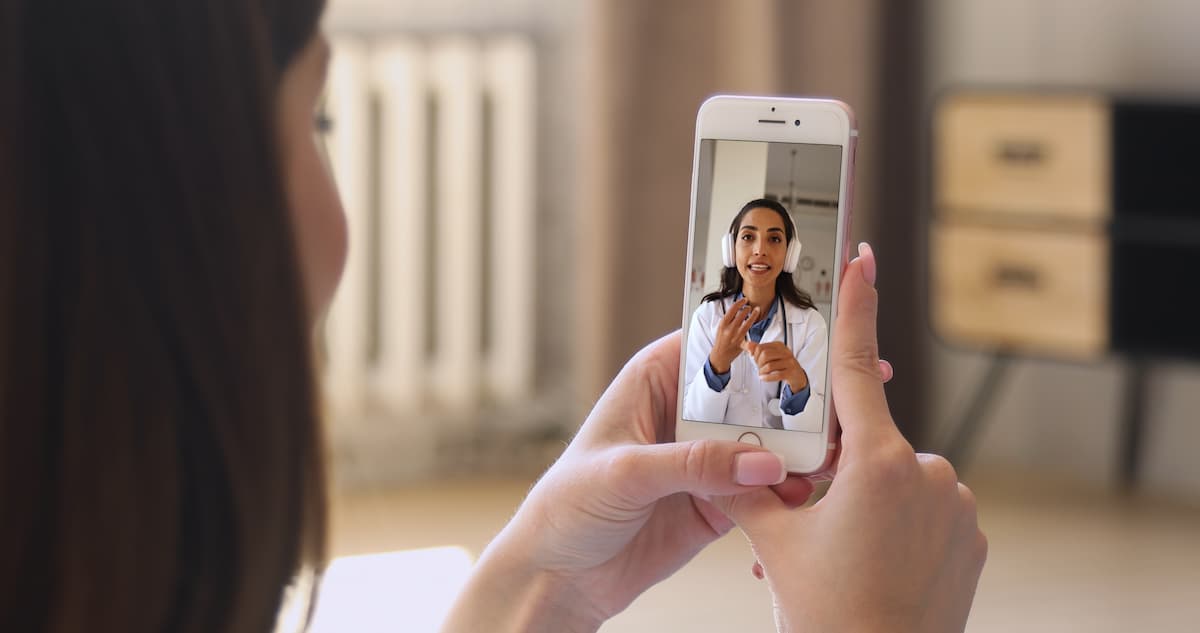
The benefits are clear, and the downsides are manageable. So, how do you actually make this work?
The Three Things You Absolutely Need
Before digging into your settings, check three specific points. It saves you from wasting time later.
- A compatible smartphone (most iPhones since the 5c and many modern Android devices are).
- A mobile plan from a carrier that supports Wi-Fi Calling.
- A stable, broadband internet connection via Wi-Fi.
If you meet these three requirements, activation takes seconds. You just flip a switch in your phone settings. It really is that simple to start.
Wi-Fi Preferred vs. Cellular Preferred: Making the Right Choice
Some phones offer a choice: “Wi-Fi Preferred” or “Cellular Preferred”. The first prioritizes Wi-Fi even if the cell signal is weak. The second only switches to Wi-Fi as a last resort.
Here is my take. If your home Wi-Fi is solid, pick “Wi-Fi Preferred” for audio quality. If you move around constantly, “Cellular Preferred” stops dropped calls. Match the setting to your daily routine.
The One Setting You Can’t Ignore: Your 911 Address
During setup, the system demands an emergency address (E911). Do not skip this step. It is strictly a safety issue.
“If you call 911 over Wi-Fi and can’t speak, dispatchers will send help to your registered address. Keeping it updated isn’t just a good idea—it could be life-saving.”
This physical address is used only if the cellular network is unavailable to locate you. It satisfies FCC requirements regarding location accuracy. Keep this updated if you move.
Troubleshooting and Security Realities
Even with the perfect setup, things don’t always go according to plan. Let’s talk about common glitches and the real security questions you should be asking.
“Why Isn’t My Wi-Fi Calling Working?”
It is the most annoying glitch: standing right next to a router, yet the feature refuses to activate. Sometimes, phones actually need to “sniff” a faint cellular signal just to initialize. It sounds counterintuitive, but the handshake often requires that initial network ping.
This is a known issue on specific devices. If you have zero bars, the service might simply stall out.
Before you throw your phone across the room, try these quick fixes. They solve the problem ninety percent of the time.
- First, double-check that the setting is enabled.
- Reboot your phone and your Wi-Fi router.
- reconnect.
Is It Secure? A Realistic Look at the Risks
Routing calls over the open internet exposes you to threats that don’t exist on closed cellular networks. Carriers rely on security protocols like IPSec tunnels to protect your voice data. However, no digital tunnel is completely bulletproof against a determined attacker.
A 2021 study actually highlighted specific vulnerabilities in how these keys are exchanged. Just be aware that your call’s privacy relies heavily on the security of your Wi-Fi network. If you trust the coffee shop router, you are trusting their security.
How Much Data Are We Talking About?
If you are on a metered connection, you need to watch your consumption closely. Standard voice calls over Wi-Fi are surprisingly efficient, using roughly 1 MB per minute. That is negligible for most users, even on slower home connections.
Video calls are a completely different beast and eat bandwidth aggressively. Expect to burn between 6 and 30 MB per minute depending on quality. Keep an eye on this if your home internet plan has a strict data cap.
Wi-Fi Calling transforms how you stay connected in low-signal areas, turning your home internet into a reliable cell tower. It is free, easy to activate, and already built into your phone. Don’t settle for dropped calls or choppy audio. Enable this feature in your settings today and reclaim your signal.
FAQ
How do I actually switch on Wi-Fi Calling?
Enabling this feature is straightforward on most modern devices. Head into your main Settings menu; on iOS, tap “Phone,” and on Android, look under “Connections” or “Network & Internet.” Once you toggle the switch, you will likely be prompted to register an E911 emergency address, a mandatory safety step required by regulators before the service activates.
Will enabling Wi-Fi Calling increase my phone bill?
generally, no. Major carriers treat Wi-Fi calls exactly like standard cellular calls, meaning they simply deduct minutes from your existing voice plan without adding surcharges. However, you should always double-check your carrier’s policy regarding international calls, as standard long-distance rates usually still apply even when calling over Wi-Fi.
Are there any real downsides to using Wi-Fi Calling?
The technology isn’t flawless. The most common issue is the ““handoff” failure; if you walk out of Wi-Fi range during a conversation, the call might drop rather than seamlessly switching to the cellular network. Additionally, in some scenarios, keeping the feature active on a weak Wi-Fi network can drain your battery faster than a standard standby signal.
Does every smartphone support Wi-Fi Calling?
Most devices released in the last decade are compatible. This includes iPhones as far back as the 5c and the vast majority of modern Android phones (Samsung, Google Pixel, etc.). However, hardware compatibility isn’t enough; your mobile carrier must also support the feature for your specific device model to make it functional.
Why should I use Wi-Fi Calling instead of cellular?
It is your best defense against signal dead zones. If you live in a basement apartment, work in a concrete office building, or reside in a rural area with spotty tower reception, Wi-Fi Calling bypasses the cellular network entirely. It uses your broadband connection to deliver crystal-clear audio where a standard signal fails.
Is it better to rely on Wi-Fi or cellular for calls?
It depends on your movement. If you are stationary at home with a high-speed fiber connection, prioritizing Wi-Fi (often a setting called “Wi-Fi Preferred”) ensures the best quality. Conversely, if you are moving around or your internet is congested, relying on cellular prevents audio stuttering and ensures your call doesn’t cut out unexpectedly.